Multiple Exposures with your LUMIX camera
Do you want to learn something really fun that you can do inside your Lumix camera? In this video, I'm show you how to do in-camera multiple exposures, stacking photos, layering photos, whatever you want to call it, and you don't need Photoshop. This works with the brand new Lumix L10, S1ii, G100, and many other Lumix cameras.
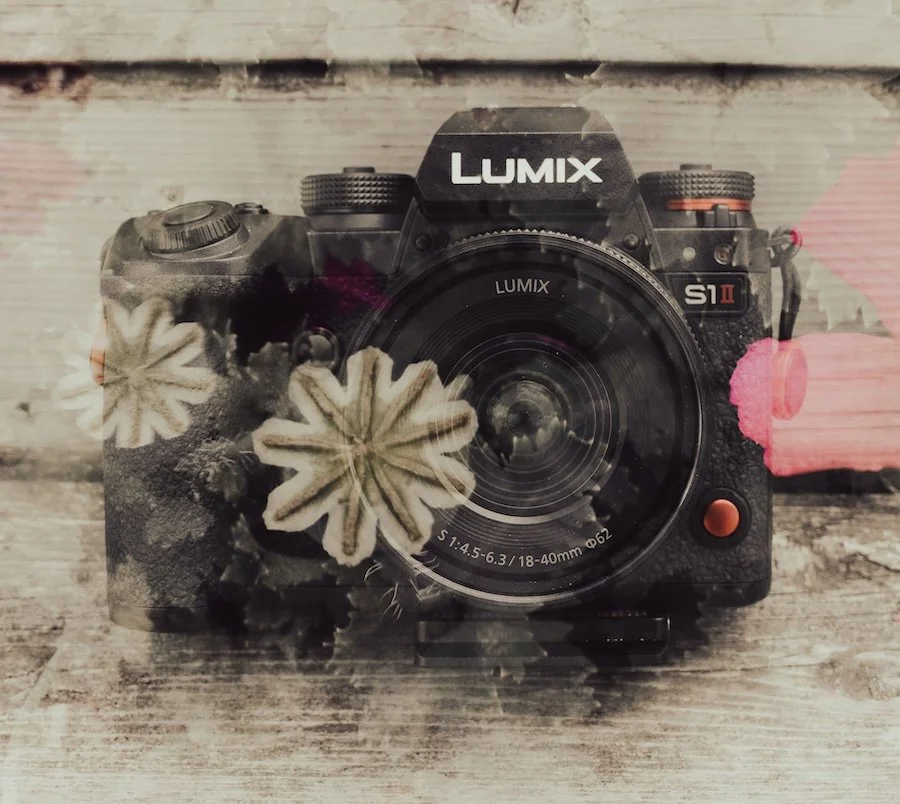
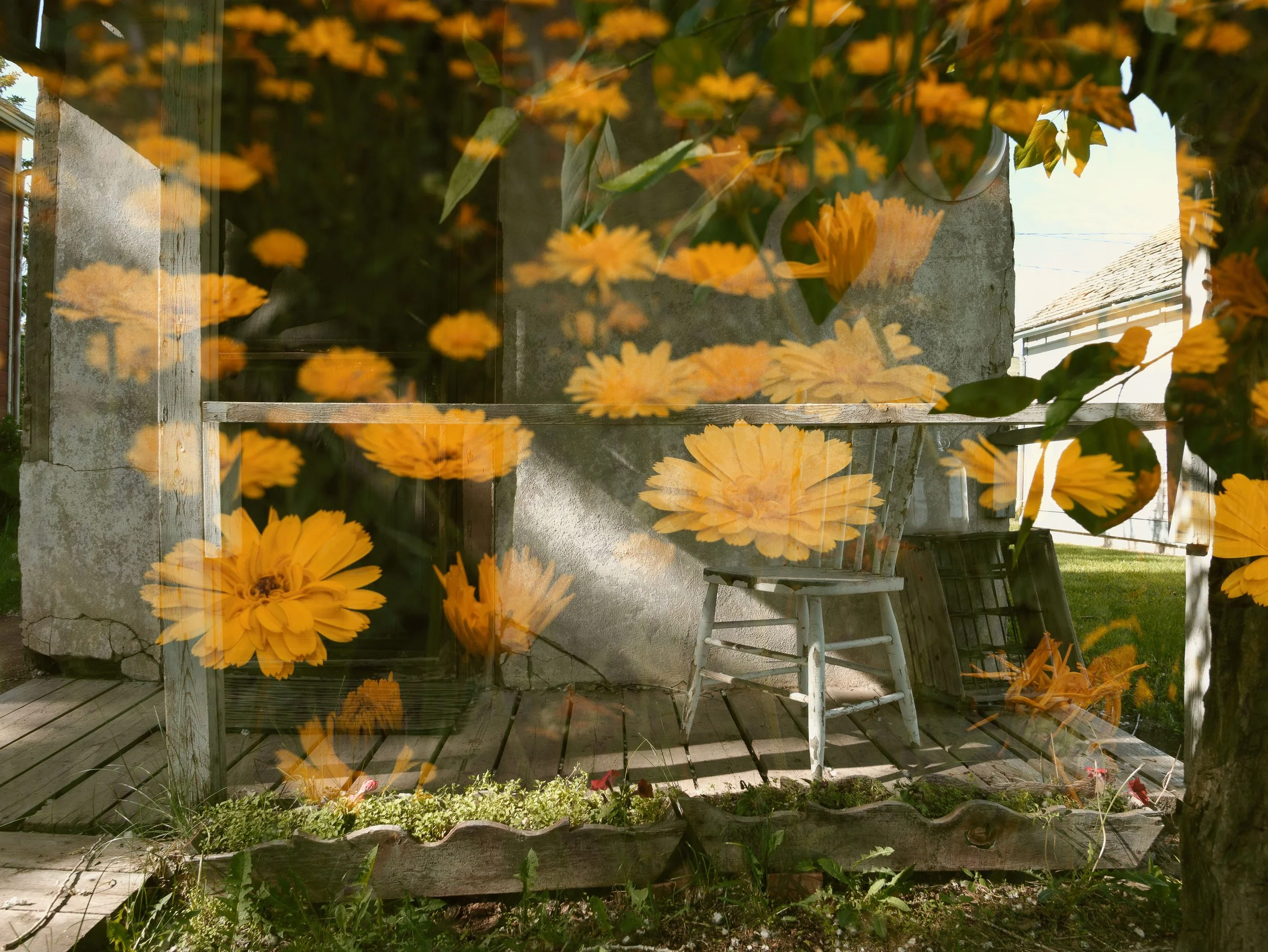
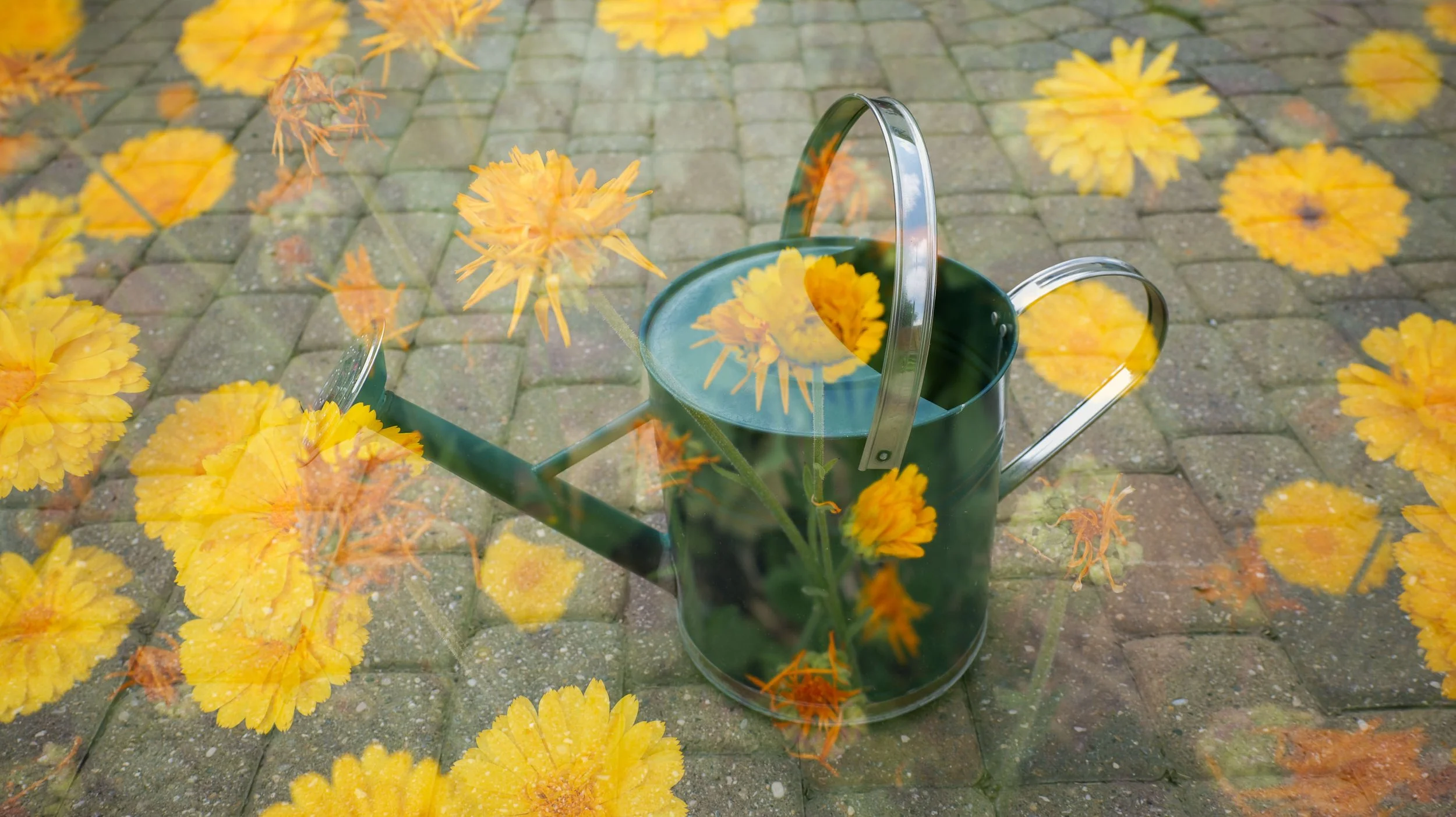
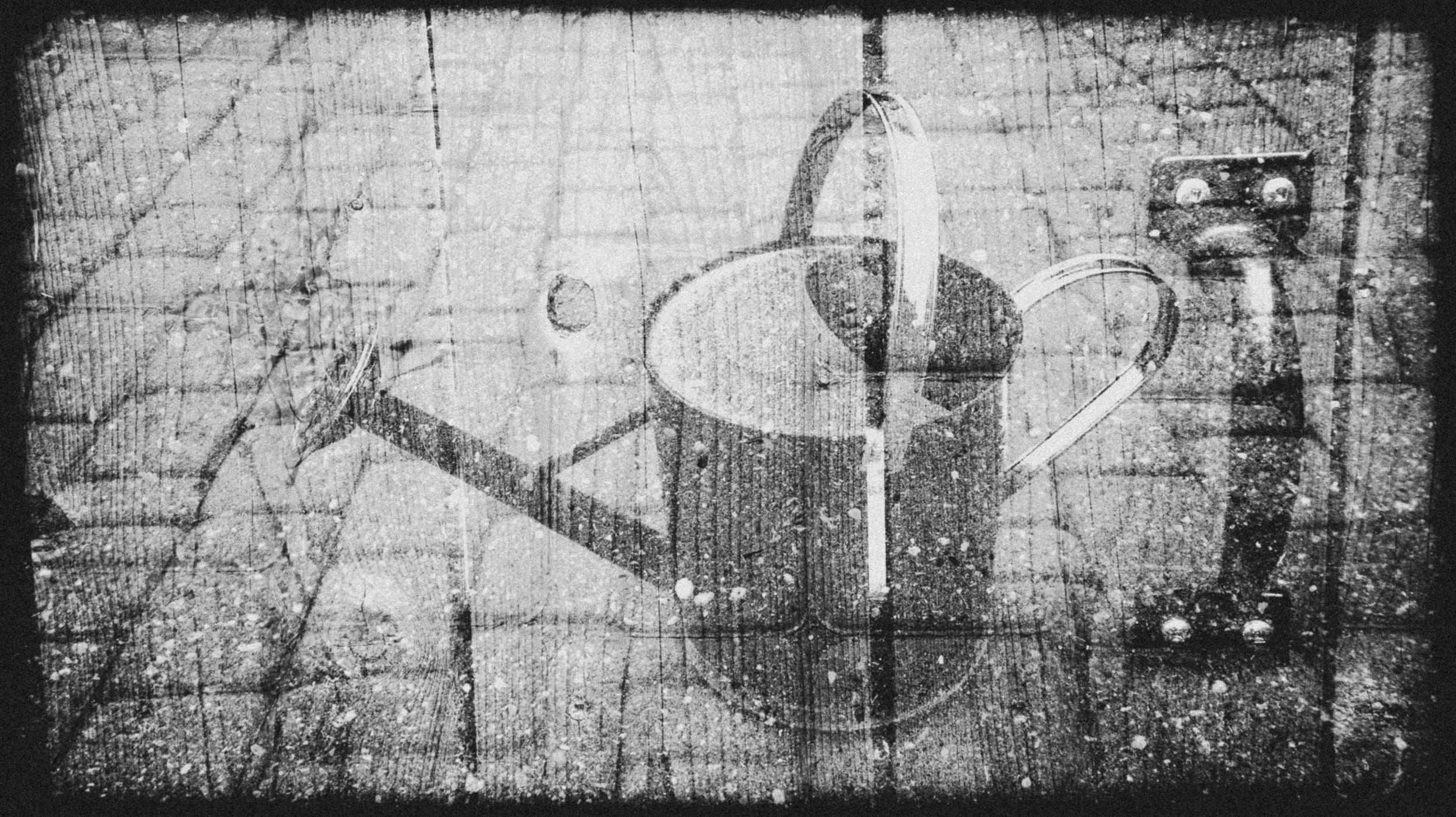
Here's some examples of multi-exposure images I’ve made. You are able to add up to four images in a stack, right in the camera.
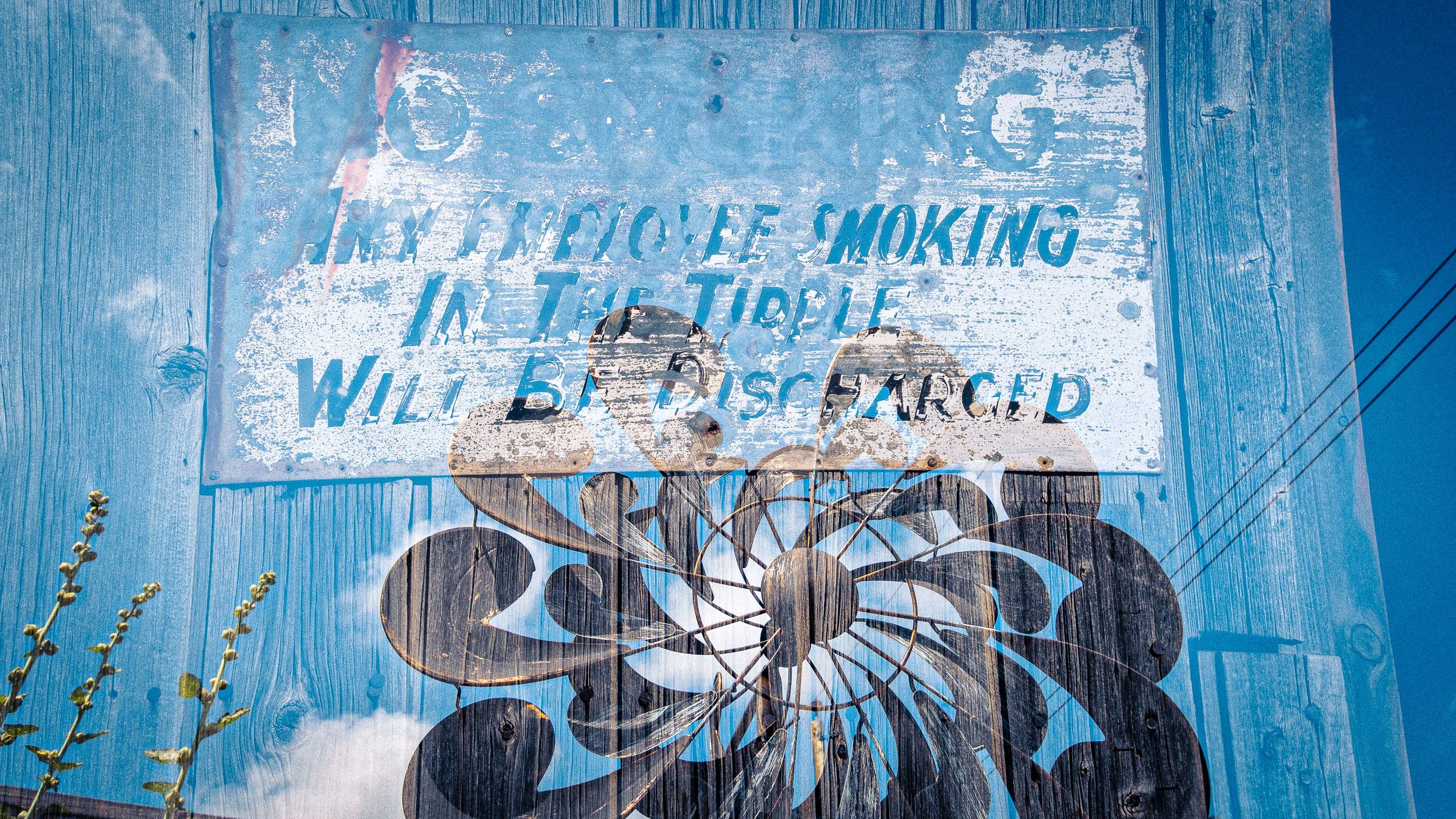
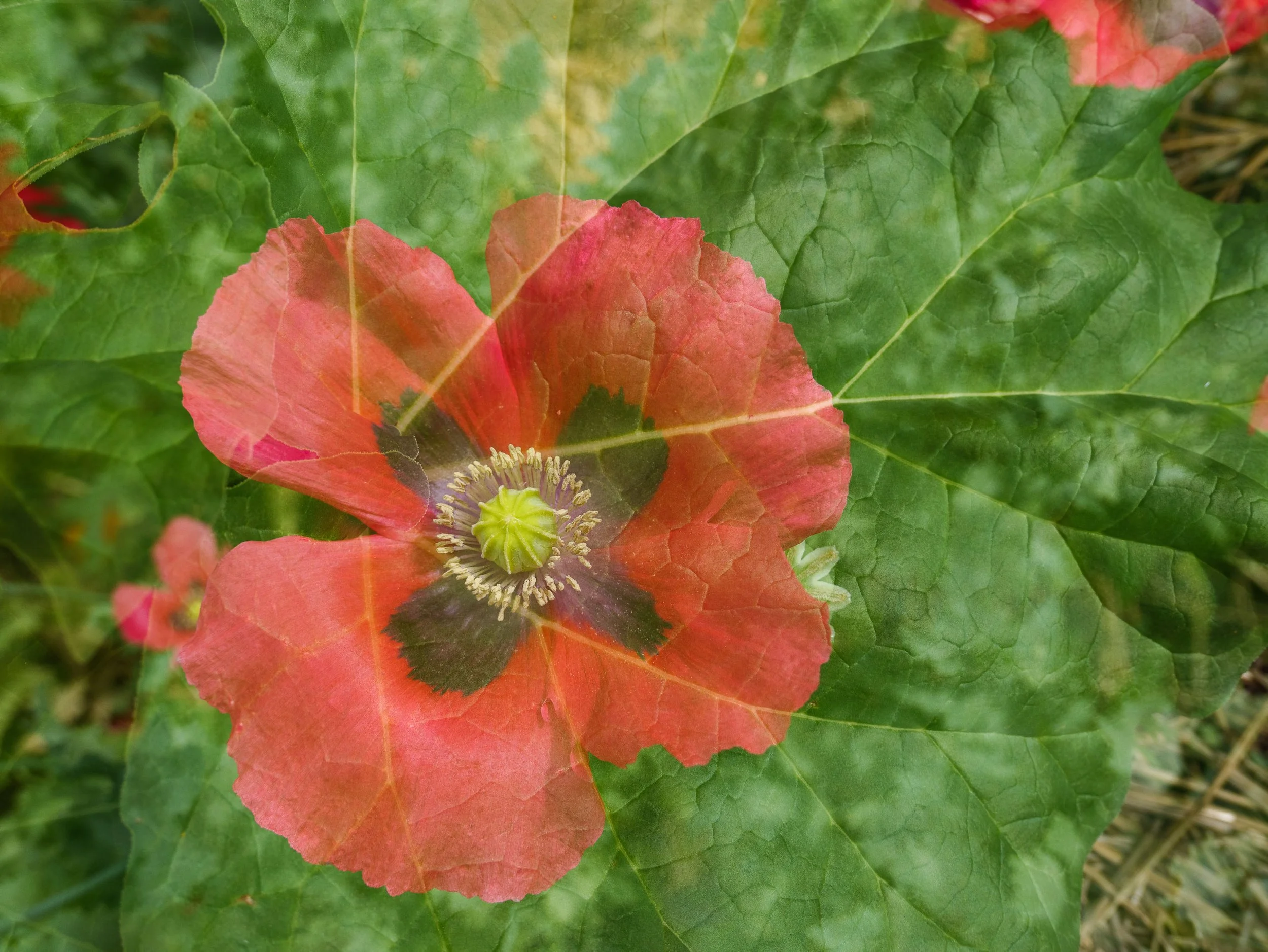
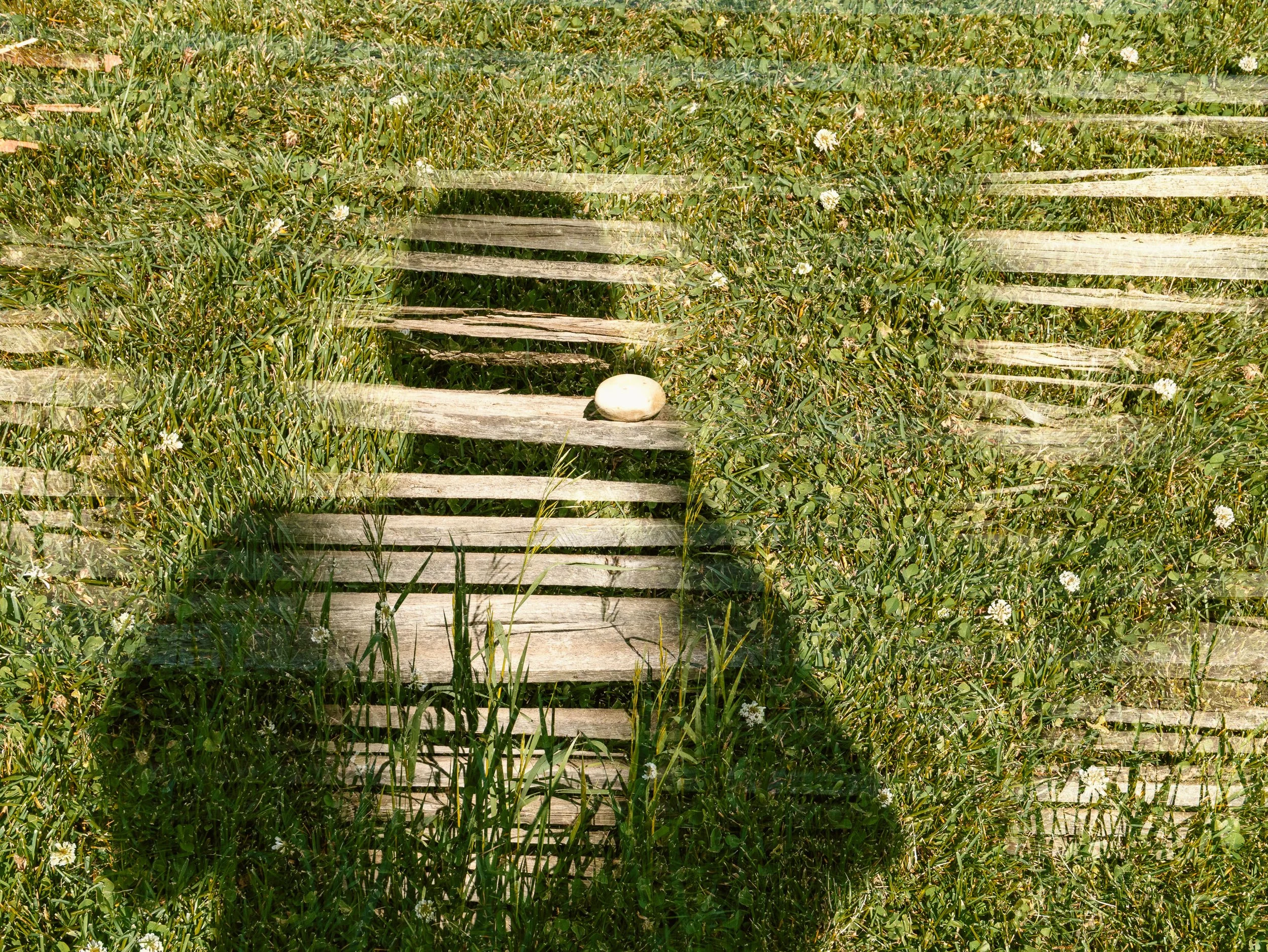
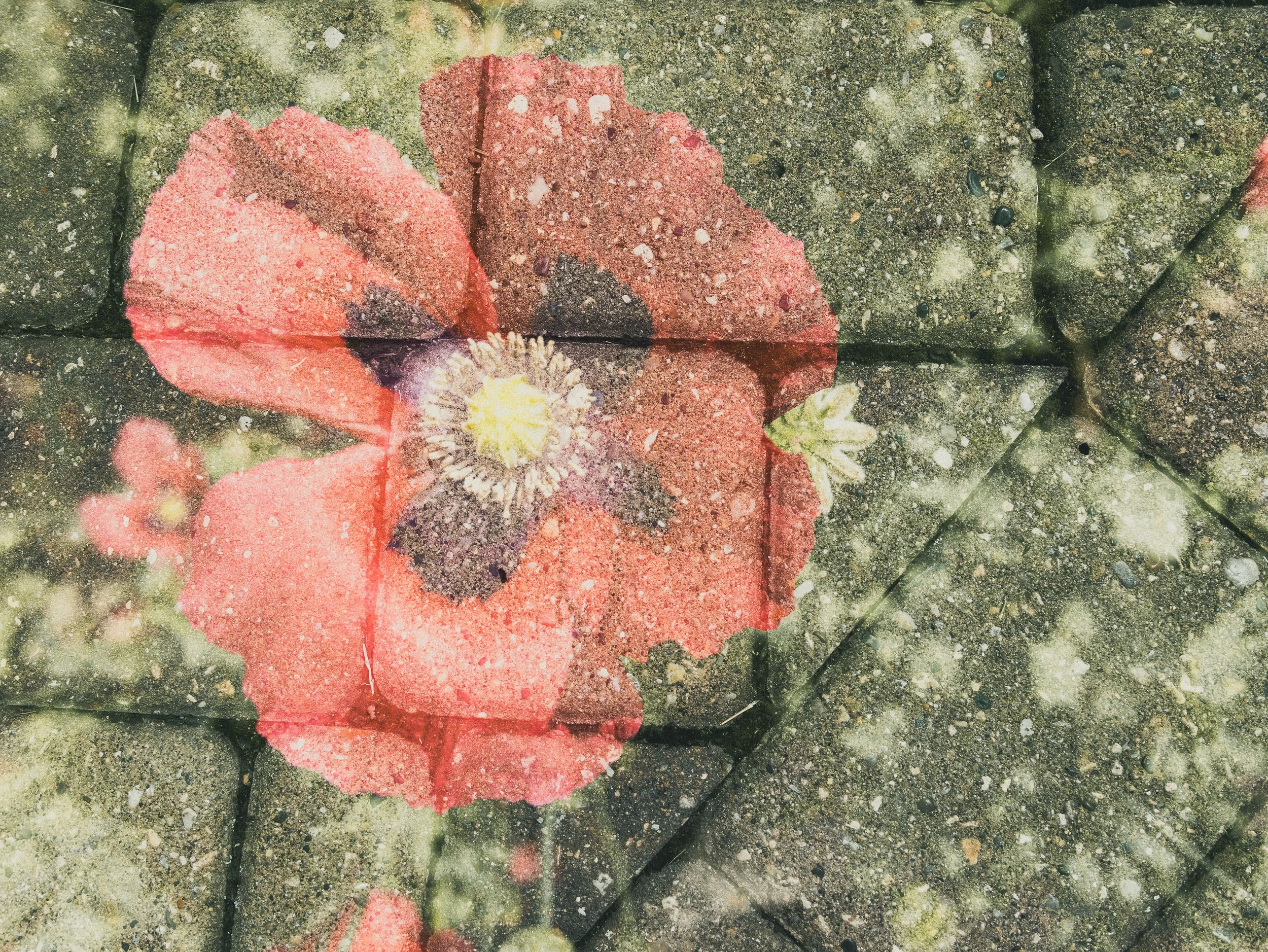
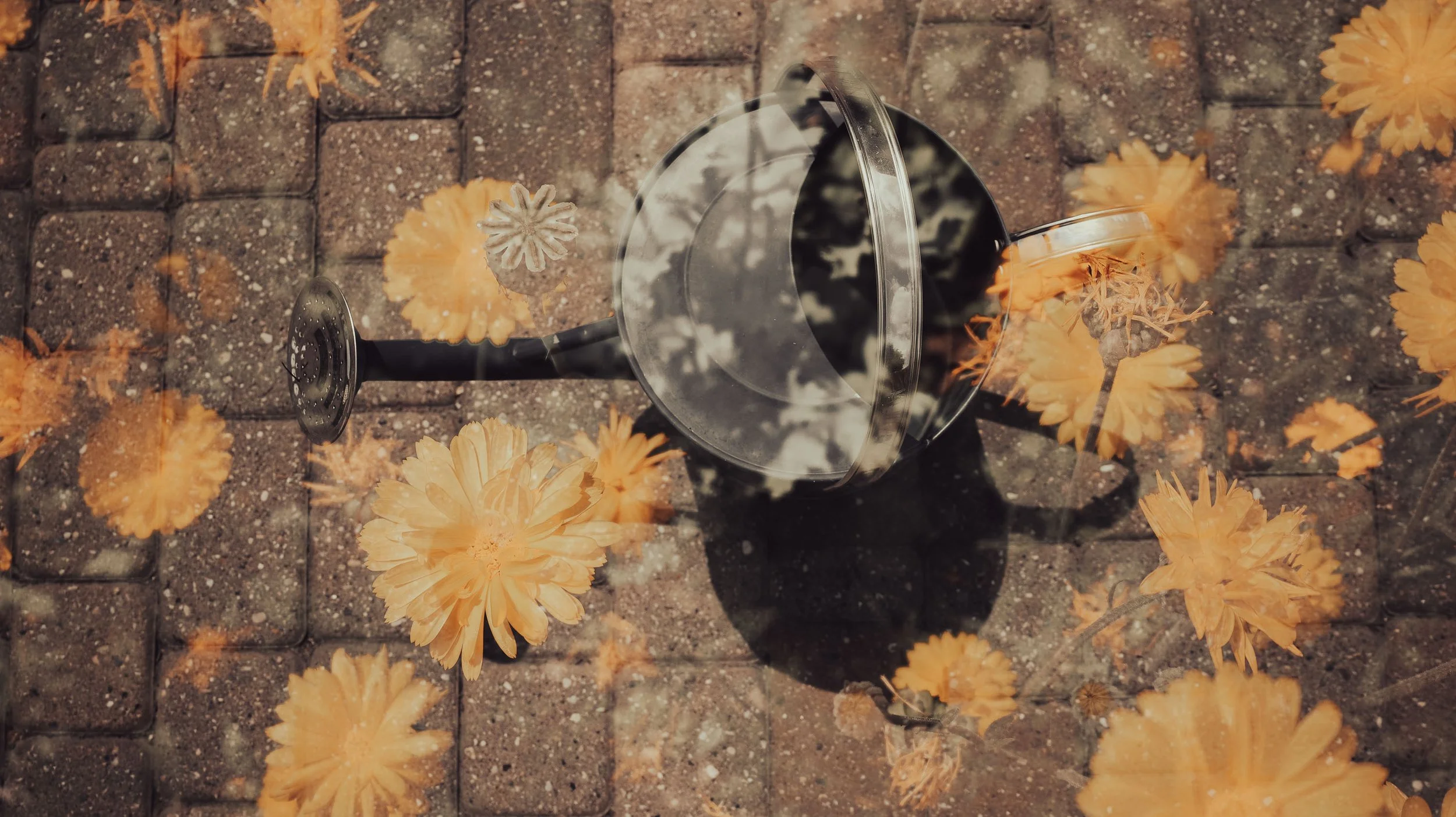
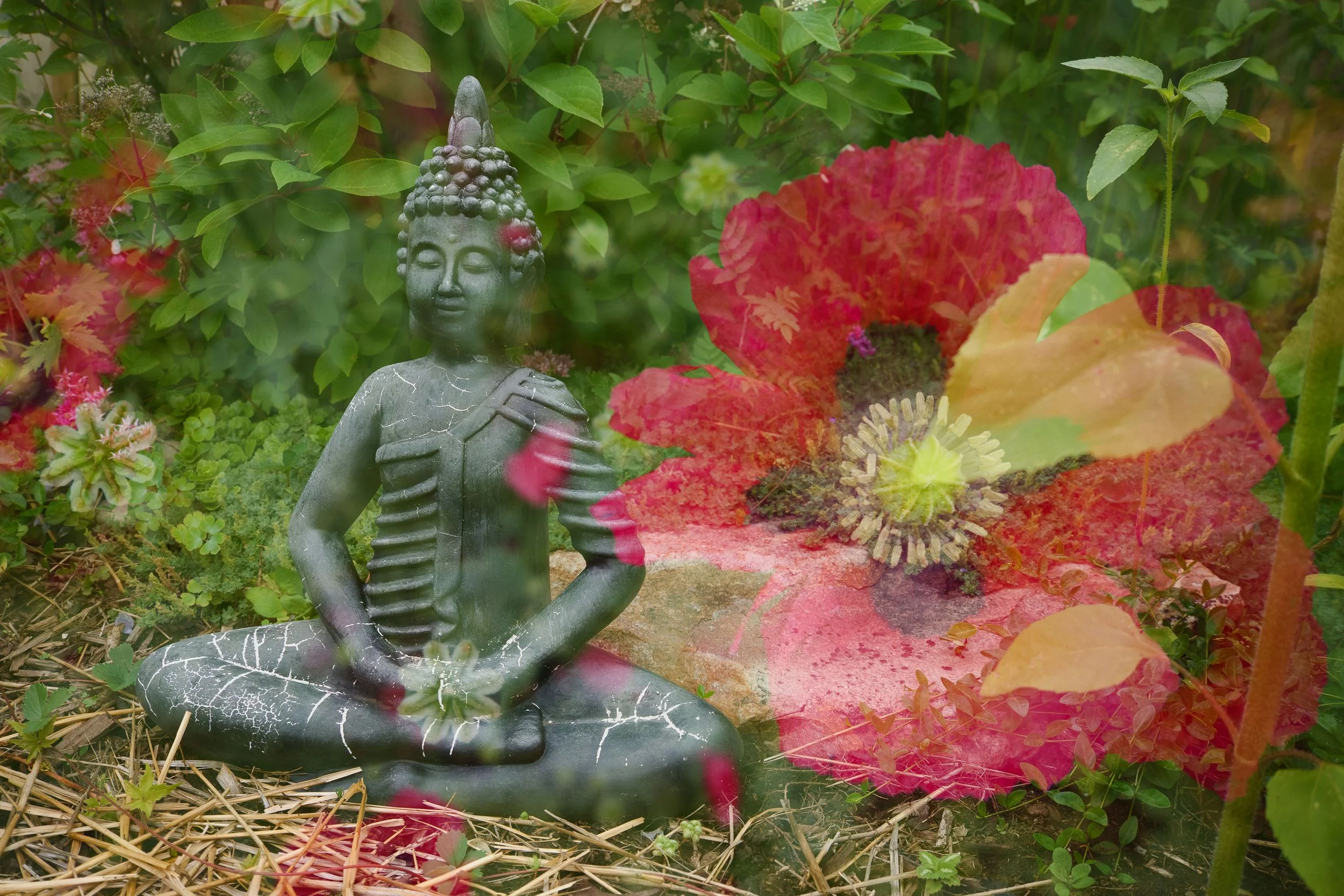
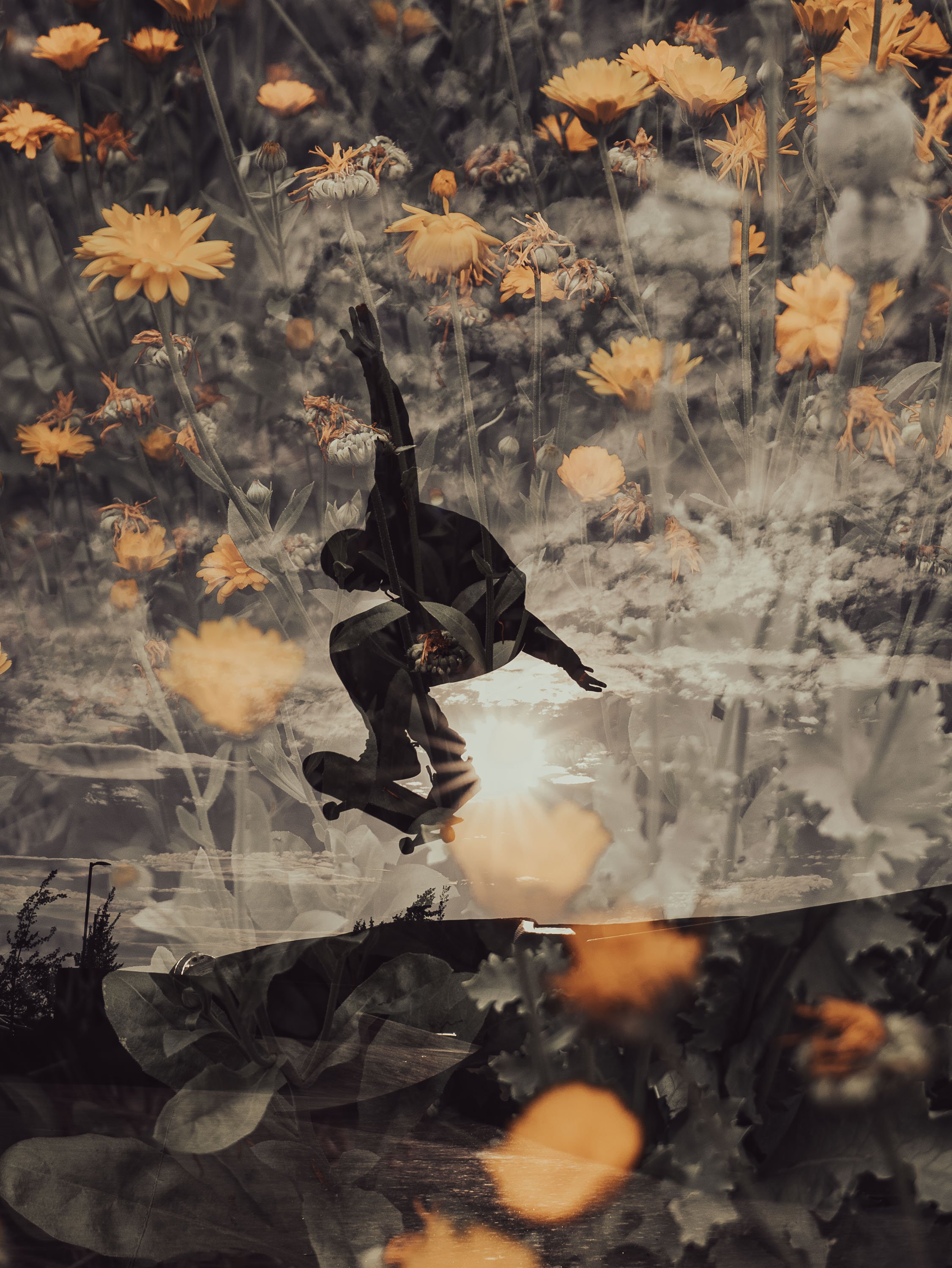
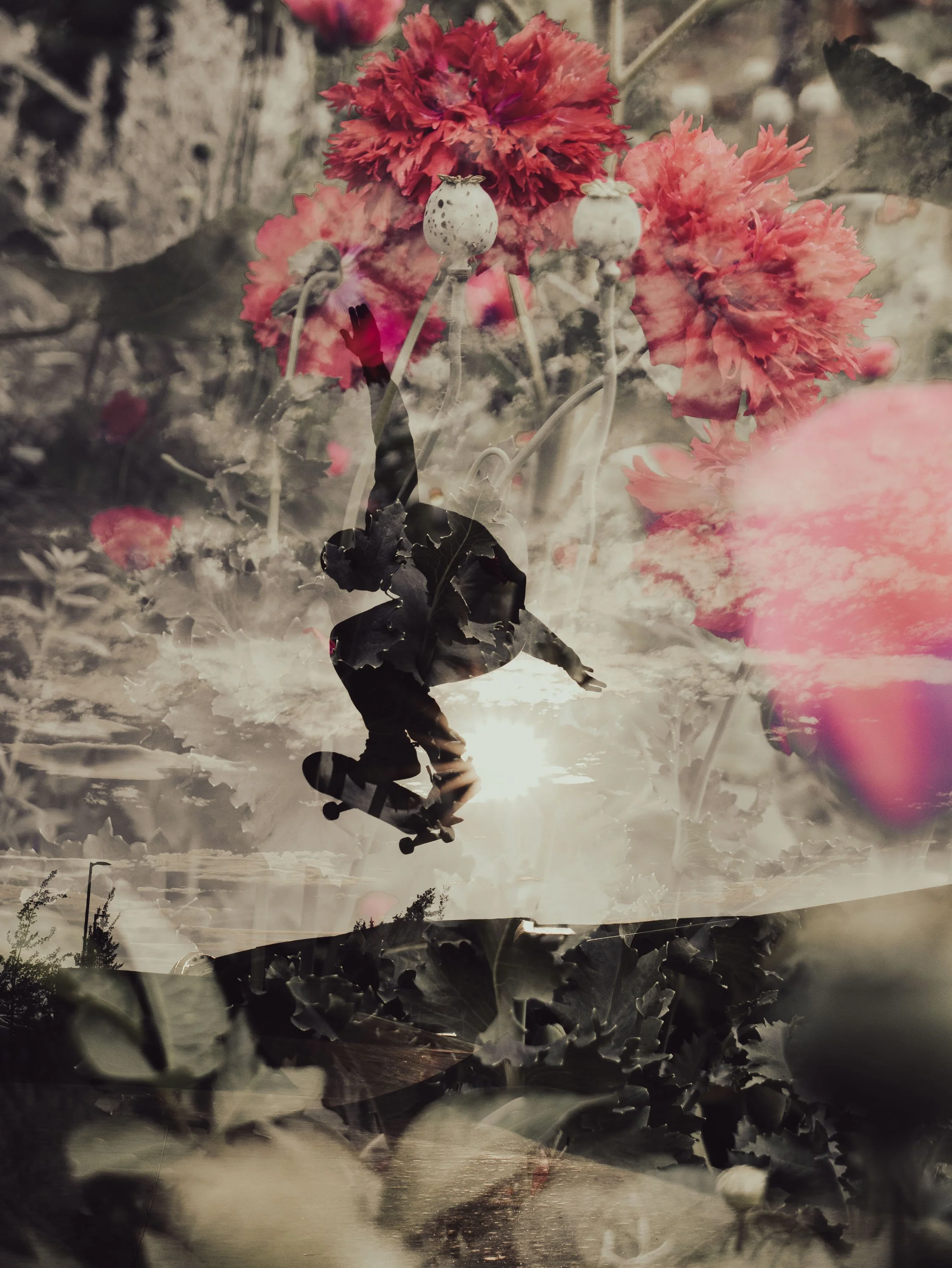
Method
Go into your playback menu and choose a photo that you want to multiple expose with another photo.
This is your base photo and the other ones are live photos. It's the second menu down on the L10.
Go to multiple exposure. If you can't find the menu, look in your owner's manual. If it's not there, that means your camera doesn't have multiple exposure.
So, we go into that and we I suggest you keep the auto gain on and the overlay on.
Press Start. Press the set button or the set menu.
When you're happy with your composition, take a picture. And you can see how it stacks the images.
It's not exactly what you see is what you get. I noticed that the light areas tend to stay light and the dark areas stay dark.
If you're happy with it, you can press exit. If you're not happy, you do a retake.
If you want to stack more than one photo on top, you press next.
Let's say that's all we want to do, or we want to retake that last one. So, we just hit end. Press the Q button and play back
And that's all there's to it. Super easy.
Experiment with Auto Gain off and on
With different colors and different tonalities in your image in your base image as well as the image on top, it's going to make a huge difference. And that is the whole fun of playing with this multiple exposure.
You don't exactly know what you're going to get until you start to play around.
If you happen to have a memory card with some macro images on it, like some close-ups of bugs and things, definitely play with those because you can stack them with other images right in camera.
I like to go through my images and find some that I like.
What I do is I find the image on my memory card that I want to use as a multiple exposure first and then I go to the multiple exposure menu. If you don't do that first, you have to scroll through while the feature is active.
Now, what you should keep in mind is the date of your photos, because when you're in playback mode, if you go to the small thumbnails and then you click one more, it goes to a calendar view and it shows you the dates you've taken photos.
You can click right on to the date and go right to the images. This saves time scrolling through hundreds of photos on your memory card.
Create greeting cards from your images.
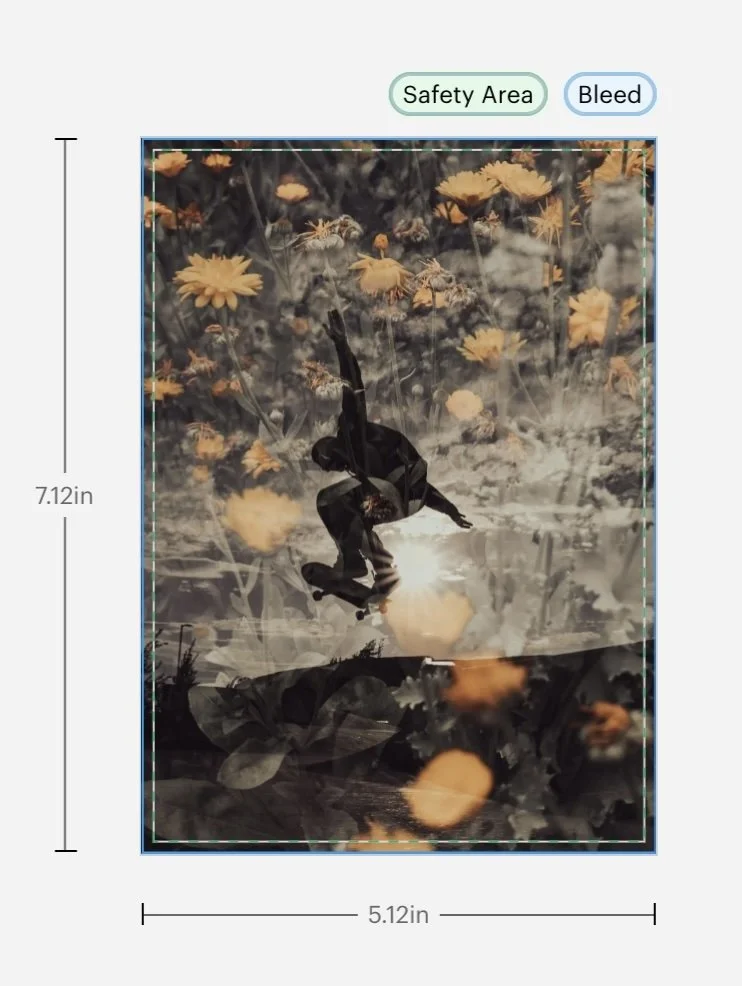
If you want to make greeting cards, remember to shoot a bunch of photos vertically because most people like a vertical greeting card. It's not that you can't shoot them horizontally, but vertical is the greeting card standard.
Tips
If you shoot JPEGs only, you won't have access to the same features as if you shoot RAW files or RAW plus JPEG. So, if you're going through your images and it says this image can't be used for this feature, it's probably because it was a JPEG only.
One of the things I do love to do with these images is actually to play with them in Lightroom and do some edits.
And I really love the presets in Lightroom, especially the cinematic ones with these images because they're not super realistic to begin with.
One last tip.
If you don't know if your camera does this or not, if you can't locate the menu, go to your owner's manual.
Yes, I read the owner's manual. Download the PDF to your computer or your phone or whatever.
Owner's manuals - PDFs - always have search bars. Search for “multiple exposure” and it will take you right to the page where it is.
If your camera doesn't have it, you won't see that come up as a result.
Good luck, have fun!